A Complete Guide About Chrome net internals dns
 Written
By
Puspendra Kumar
Written
By
Puspendra Kumar
Reading time: 7 minutes
When you visit a website, your browser converts the domain name into an IP address through a process which is called domain name resolution. In Google Chrome, you can inspect and troubleshoot this process using the Chrome//net-internals/dns tool. This built-in diagnostic interface provides detailed insights into how Chrome manages DNS lookups and network connections. It’s a crucial resource for developers and IT professionals seeking to monitor DNS activity, clear the host cache, or resolve connectivity issues, all directly within the browser.
By visiting Chrome//net-internals/dns, you can easily see how DNS is working behind the scenes, clear cached data, and fix issues that might be slowing down your connection. It’s a significant way to troubleshoot the problem and improve your browsing speed.
It’s quite interesting if you prefer cloud hosting, where fast and reliable DNS performance is key to keeping websites and applications operating effortlessly. With the help of Chrome’s Network Intents tool, you can ensure your DNS settings are working well, helping you get the best results from your cloud-based setup.
How Can You Use Chrome://net-internals/#dns to Clear the DNS Cache in Chrome?
Before proceeding with this post, it is essential to understand what a DNS cache is and how DNS cache clearing works. DNS cache refers to a small amount of data about regularly used domains and websites. The main objective of the DNS cache is to speed up browsing, and when remote or ISP DNS servers are down, you can reach that website using Chrome DNS cache.
However, when a website changes its DNS entry or due to some other faulty network condition, you need to clear out the DNS cache to reach to correct IP address on the Internet.
In simple terms, DNS cache clearing means getting rid of existing cached data from Google Chrome. Once cleared, Google Chrome will ask for all the new IP addresses and DNS information for that website.
Here’s the process to clear the DNS cache on the Google Chrome browser.
- Open a new tab
- Now type the URL in the search box section: chrome://net-internals/#dns
- Hit the Clear Host Cache button
- Now you are almost done, as DNS is cleared out
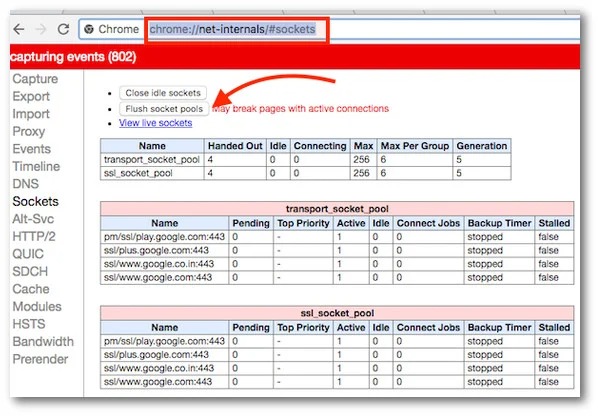
- Open another tab and type the URL, Chrome://net-internals/#sockets
- Click on the Flush Socket Pools button
- Now, close the Google Chrome tab
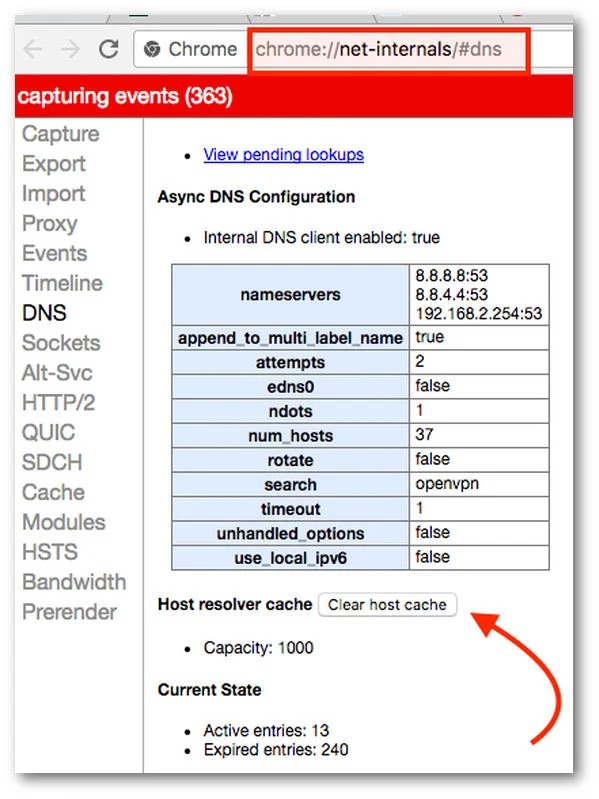
From the current version of Google Chrome:
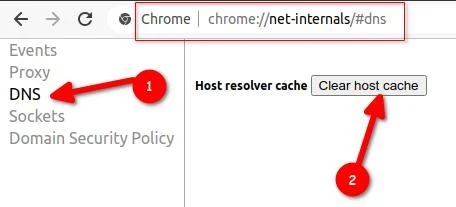
You may need to clear out socket pools, too:
Open a new tab and type the following in the search box:
Chrome://net-internals/#sockets
Click on the Flush Socket Pools
What is the DNS Cache?
DNS cache is basically a compact data about regularly used domains and websites. The main objective of the DNS cache is to speed up browsing, and when the remote or ISP DNS servers are down, you can reach that website using the Chrome DNS cache.
How Exactly is Clearing the Cache?
DNS cache clearing/flushing means eradicating the existing cached data DNS entries from Google Chrome. Once flushed, Google Chrome will ask for all the new IP addresses and DNS information for that website.
How Can You Use Chrmoe://net-internals/#dns on Mobile Devices?
The Chrome://net-internals/#dns tool is a solid feature that enables you to clear the DNS cache on your mobile device, irrespective of using Chrome on Android, iPhone, or iPad.
Now, if you are wondering how you can clear the host cache in Chrome’s net-internals DNS on mobile, then the solution is simple.
To clear the host cache on Chrome’s net-internals DNS page, simply follow the steps mentioned above. Open the Chrome browser on any mobile device, whether it is an Android, iPhone, or iPad.
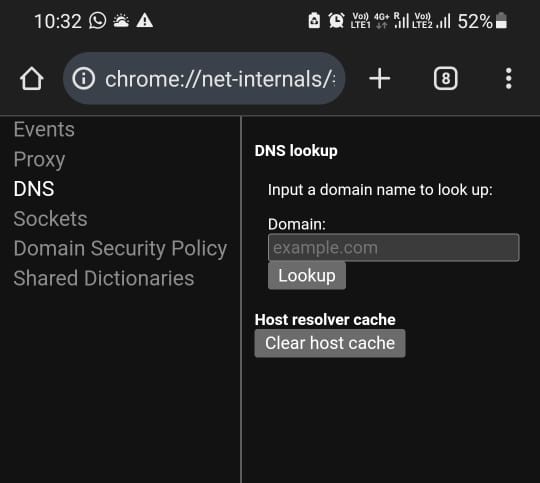
Still, if that doesn’t work, then you can try the following steps:
-
Open the Chrome app on your Android/iOS phone or tablet
-
Tap the “More” button located at the top-right corner of the screen
-
Select “History” from the list of options
-
Chrome a time range by tapping on the drop-down menu located at the top of the screen. To clear all browsing data, select “All time.”
-
Check the boxes next to “Cookies and site data” and “Cached images and files.”
Tap the Clear data button located at the bottom of the screen.
Pros and Cons of Using Chrome.//net-internals/dns tool
Some significant pros and cons of using the //net-internals/#dns feature in Chrome:
Pros:
-
Clears the DNS cache in Chrome, helping resolve website loading and connectivity issues.
-
A simple and instant process that can be done in just a few steps.
-
Built directly into Chrome, eradicating the need for additional software.
Cons:
-
Deleting the DNS cache removes stored domain name and IP address associations, for the moment slowing website loading times as the cache rebuilds.
-
Designed for modern users, it may be overwhelming for those unfamiliar with browser settings.
-
Incorrect or improper use can lead to unintended issues or potential data loss.
How to identify whether the DNS has been cleared out or not?
Apply the nslookup command on your Windows, Linux, MacOS, or Unix machine. Open the command prompt in Windows and type nslookup as given below:
nslookup yahoo.com
Nslookup nixcraft.com
How Chrome Net Internals DNS Impacts Your Everyday Browsing Experience?
Most users treat Chrome’s chrome://net-internals/#dns tool as a one-time fix, open it, hit Clear Host Cache, and move on. But behind this tiny action lies a deep influence on how efficiently your browser interacts with the web.
Every time you type a website name, your system asks, “Hey, where is this site hosted?” That’s the DNS lookup process. When your DNS cache is cluttered or outdated, Chrome can waste milliseconds, even seconds, trying to reach the wrong or expired IP. Now imagine this multiplied across dozens of websites, tabs, and background requests. That’s how slow browsing silently builds up.
By regularly clearing your DNS cache through chrome://net-internals/#dns, you’re actually giving Chrome a “fresh start” removing unnecessary lookups, avoiding connection timeouts, and ensuring the browser fetches data directly from live, valid IPs. In cloud-based workflows or while accessing frequently updated SaaS platforms, this can drastically reduce load times and boost reliability.
Conclusion
Whenever you access a website, your browser performs a vital process, known as DNS resolution, where it changes the domain name into its corresponding IP address. In Google Chrome, there’s a hidden but solid tool that enables you to inspect and manage this process: chrome://net-internals/#dns. This built-in diagnostic interface provides developers, IT professionals, and even passionate users with a view of Chrome DNS operations.
No matter if you’re experiencing slow browsing, unexpected connection errors, or outdated DNS records, the Net Internals DNS tool helps you control DNS activity, clear the host cache, and flush socket pools, all without the need for external software. It becomes even more critical for users depending on cloud hosting environments, where fast DNS response and accuracy directly affect website and application performance.